How to Tell What WordPress Theme a Site Is Using
Last modified: October 5, 2026

You can tell what WordPress theme a site is using in two ways: read the site’s own code, or let a detector read it for you. Both work, and this guide walks through each one. The manual route takes about a minute and teaches you exactly where WordPress hides the theme name. The one-click route hands you the theme, the plugins, and the host without you touching any code. We will start with the by-hand methods, then show the shortcut.
Key Takeaways
- To tell what WordPress theme a site is using, open the page source, find a /wp-content/themes/ path, then open that folder’s style.css and read the Theme Name line.
- The style.css header also lists the author, the version, and any parent theme, so you can spot a child theme right away.
- If the code is minified, or the site runs a page builder like Elementor or Divi, the manual method can fall short.
- The fastest route is a detector: paste the URL into Scan WP and it returns the theme, the plugins, the host, and usage data in one click.
How to tell what WordPress theme a site is using
Every WordPress theme leaves fingerprints in the pages it builds. The design you see is loaded from files in a folder named after the theme, and one of those files, style.css, carries a short block of text at the top that names the theme outright. So the manual answer to “what WordPress theme is this site using” is almost always sitting in plain sight in the source code. You just need to know the two places to look. Before you check the theme, it helps to confirm the site is WordPress at all.
First, confirm the site runs WordPress
If a site is not built on WordPress, there is no WordPress theme to find. Three quick checks tell you:
- Open the page source (right-click the page and choose View Page Source, or press Ctrl+U on Windows, Cmd+Option+U on a Mac) and search for
/wp-content/or/wp-includes/. WordPress loads nearly everything from those folders. - Look for a line like
<meta name="generator" content="WordPress 6.x">in the same source. Many sites leave it in. - Add
/wp-login.phpto the end of the domain. If a WordPress login screen appears, you have your answer.
Any one of these is a strong sign. Once you know it is WordPress, finding the theme is the easy part.
Method 1: Read the theme name in the page source and style.css
This is the method that works on the widest range of sites, and it is how most detectors do it under the hood. Open the page source again and search (Ctrl+F) for wp-content/themes. You are looking for a line that points at a stylesheet inside the theme folder, something like this:
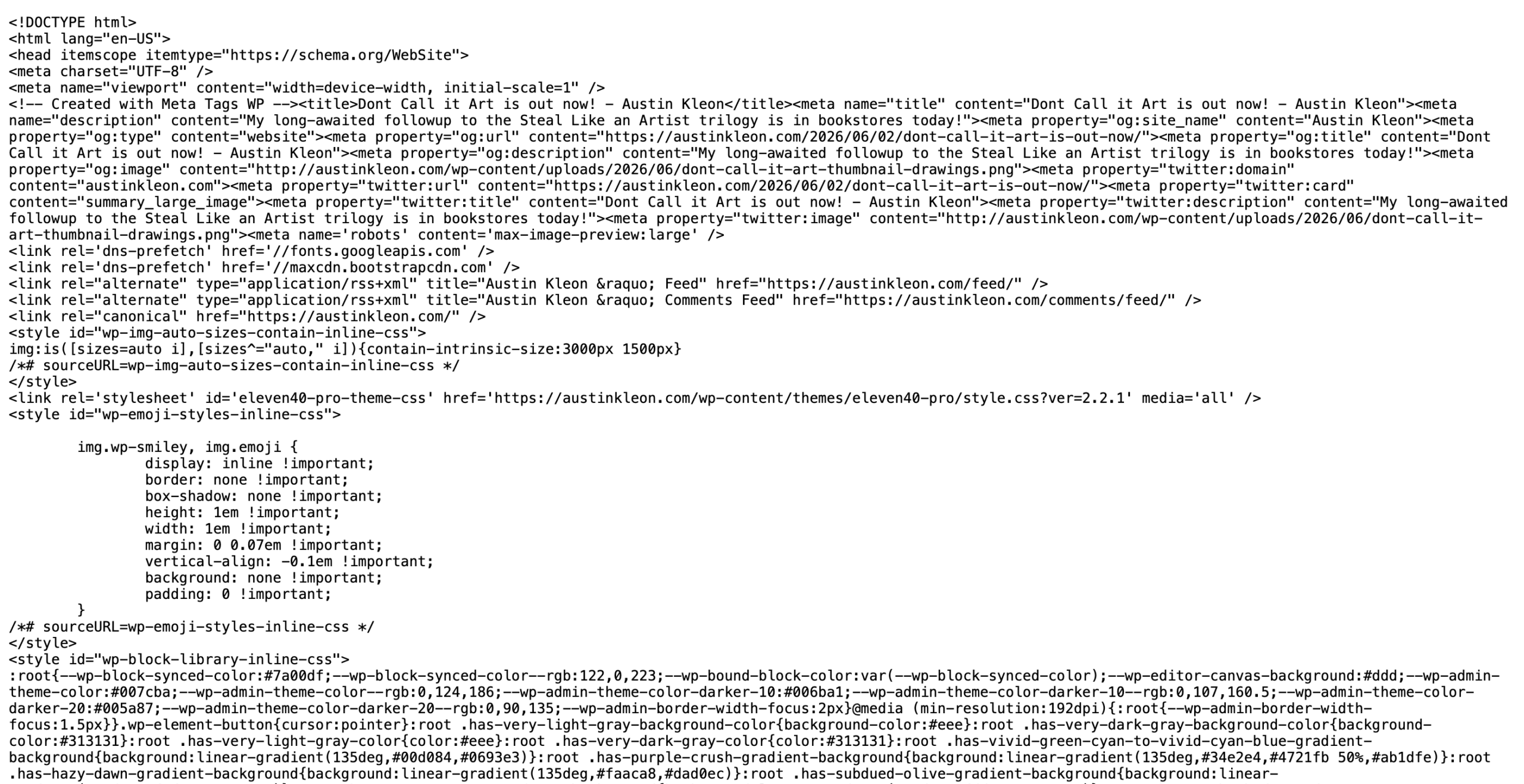
The folder name in that path is the theme’s slug. In the example above, from the Austin Kleon site, the slug is eleven40-pro, which already tells you a lot. To confirm the full name, copy the stylesheet URL (the style.css file) and open it directly in your browser. The first thing in that file is a comment block that names the theme:
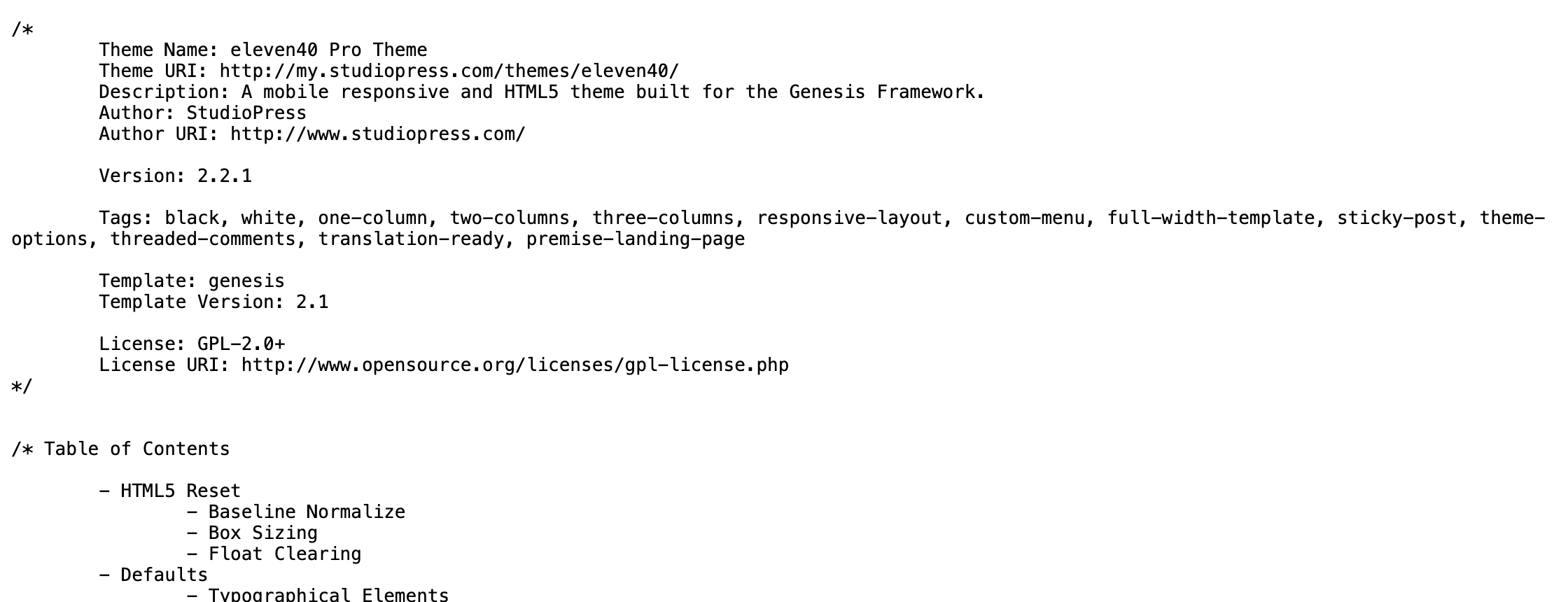
Here the header reads Theme Name: eleven40 Pro Theme, Author: StudioPress, Version: 2.2.1. That block is a standard part of every proper WordPress theme, so you will see the same layout on any site that uses one. Two extra lines are worth reading:
- Template: if this line is present, you are looking at a child theme, and the Template value is the parent theme it is built on. In the example,
Template: genesismeans eleven40 Pro is a child theme of the Genesis framework. Knowing the parent theme matters if you want to recreate the setup yourself. - Author and Theme URI: these point you to who made the theme and where to get it, which is how you go from “what theme is this” to actually using it.
Method 2: Open the theme’s screenshot.png file
Most themes ship with a preview image named screenshot.png, stored in the theme folder. It is the thumbnail you normally see in the WordPress dashboard, and it often has the theme’s name printed right on it. Once you know the theme slug from Method 1, you can open the preview directly by visiting the theme folder and adding the file name, for example /wp-content/themes/eleven40-pro/screenshot.png:
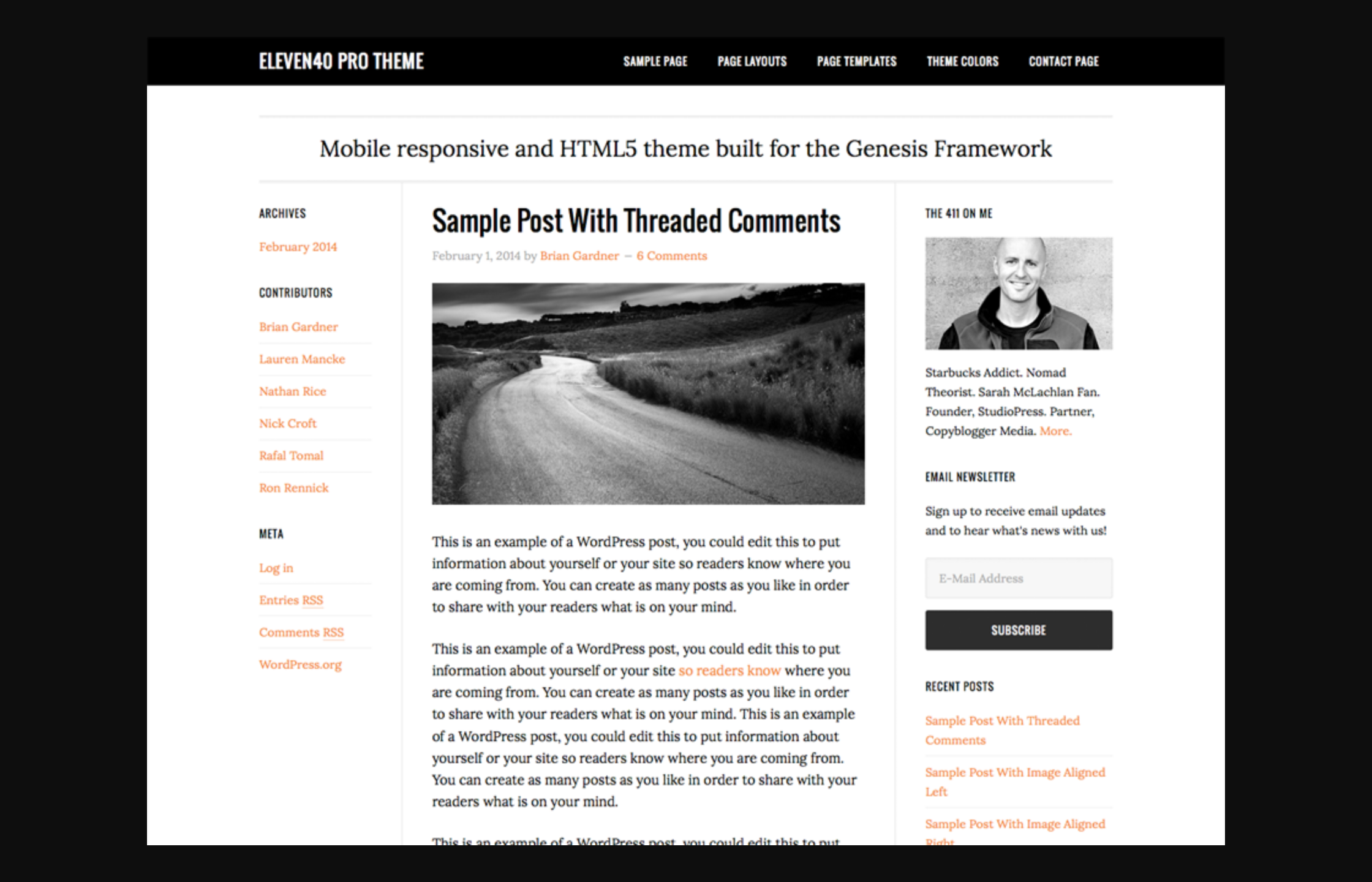
This is a handy cross-check. If the style.css header was edited or vague, the preview image can still confirm the theme at a glance.
When the manual method comes up short
Reading the code works most of the time, but not always, and it is worth knowing where it breaks down so you are not left guessing:
- The code is minified or the header is stripped. Some sites compress their files or remove the style.css comment for performance or privacy. The theme folder name in
/wp-content/themes/is usually still there, but if the developer renamed it, the trail goes cold. - The site runs a page builder. Many WordPress sites today sit on a blank or minimal theme while the whole design comes from a plugin such as Elementor or Divi. In that case the theme name will not match the look of the site, and you really want to know the builder too, not just the theme.
- It is a heavily customized or custom-coded theme. A one-off theme may have a generic name that tells you nothing about how to get it.
In each of these cases you can spend a while digging, or you can let a tool that already knows thousands of themes and plugins do the matching for you.
The no-work route: detect the theme and plugins with Scan WP
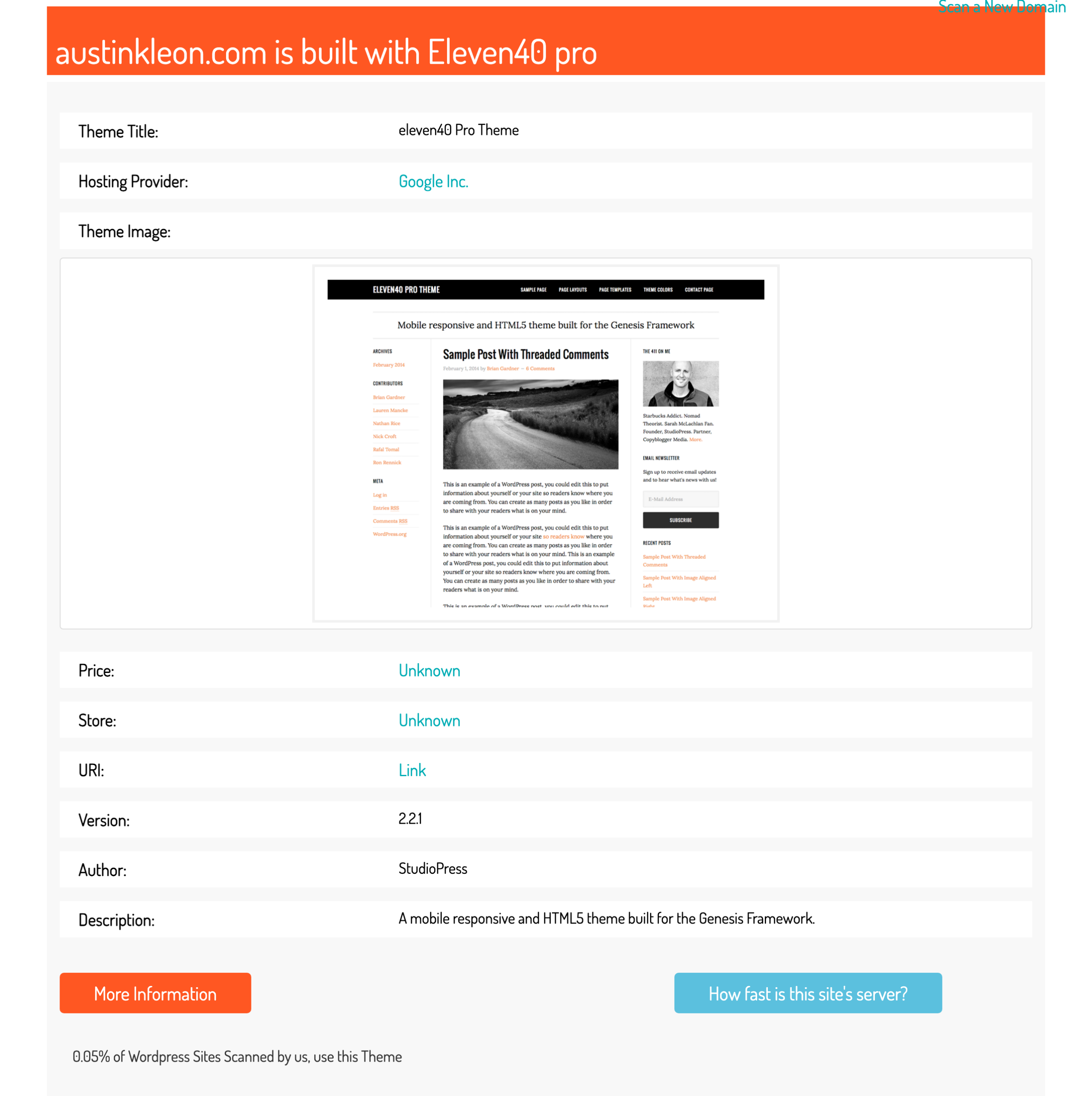
If you would rather skip the code entirely, paste the site’s address into the Scan WP WordPress theme detector and press Detect. It reads the same signals you would check by hand, matches them against a large database of themes and plugins, and returns the result in one click. Running it on the same Austin Kleon site gives this:
Notice that the detector reaches the same answer as the manual method, eleven40 Pro by StudioPress, version 2.2.1, and then adds detail you would not get from style.css alone: the hosting provider, how common the theme is across the sites it has scanned, and a link toward the theme. It also reports the plugins it can identify on the site, which is the part the manual method cannot really give you. If you check sites often, the Scan WP browser extension does the same from a toolbar button, so you can find out what WordPress theme a site is using without leaving the page. Once you have found a theme you like, you can install it with its demo content to match the original setup.
Manual method or detector: which to use
Both get you to the theme name. The difference is how much you want, and how fast:
- Use the manual method when you want to understand exactly where the theme name lives, when you only need the theme (not the plugins), or when you simply enjoy reading the code. It costs nothing and works offline on a saved page.
- Use a detector when you want the theme, the plugins, the host, and the version together, when the site is minified or built on a page builder, or when you are checking many sites and do not want to open the source each time.
Learning to find a WordPress theme by hand is a good skill, and a detector is the shortcut for the days you want the full picture now. If this exercise has you wanting a fresh look for your own site, here is how to change the theme on your own site once you have picked one.
Related Posts




 Website Maintenance – Use Promocode: scanwp
  Advanced JetPlugins for Elementor
  Semrush 14 days trial
  Kinsta – Managed WordPress Hosting
  Bluehost Hosting