How to Migrate WordPress to Shopify, Step by Step
Last modified: November 9, 2026

Moving a WordPress store to Shopify is mostly a data move: your products and customers come across, but your theme, your plugins and your page layouts do not. If you run a shop on WordPress, that shop is almost certainly built on WooCommerce, so a WordPress to Shopify migration really means moving your WooCommerce products, customers and, if you pay for a tool, your orders into Shopify, then rebuilding the look and the features on Shopify’s side. This guide walks through the whole move in order: what transfers, what you have to rebuild, the apps that do the heavy lifting, and how to keep the Google rankings you already have.
- Only your data moves cleanly. Design and plugin code do not transfer and have to be rebuilt on Shopify.
- Shopify’s free Store Migration app imports products and customers only. Orders, blog posts, pages, reviews and coupons need a paid tool or a manual import.
- Check what will and will not move before you start, so there are no surprises on launch day.
- Set up URL redirects from your old WordPress links to the new Shopify ones, or you lose your search traffic.
- Place one real test order on Shopify before you point your domain at it.
What actually moves when you migrate WordPress to Shopify
The single biggest reason migrations go wrong is expecting the new store to look and work like the old one on day one. It will not, and that is normal. It helps to split your WordPress store into three parts and treat each one differently.
Your data moves
Products, their images and descriptions, and your customer records transfer to Shopify. This is the part the migration apps handle. Two things are worth knowing before you import, because both catch people out:
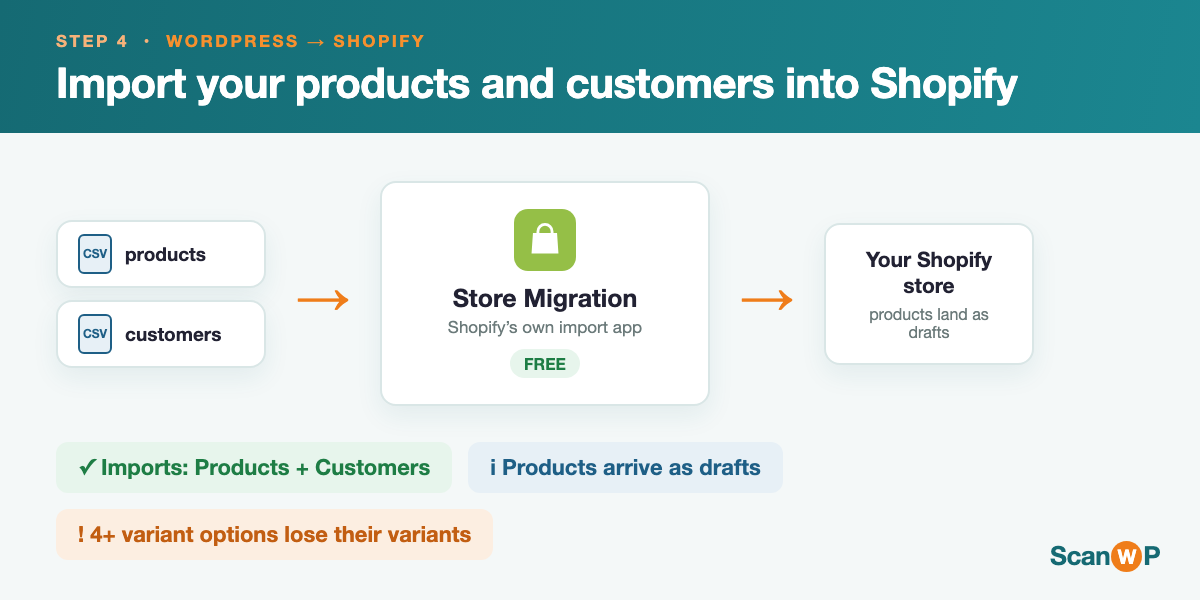
- Products with four or more variant options import without their variants. Shopify allows up to three options per product (for example size, colour and material). A WooCommerce product with four or more option types will come in as a single product and you will have to rebuild those variants by hand.
- Imported products arrive as drafts. Nothing goes live automatically. You review each product in Shopify and set it to active when you are happy with it, which is actually a good checkpoint.
Your design does not move
Your WordPress theme will not port to Shopify. Shopify uses its own theme system, so you pick a Shopify theme and rebuild your branding, colours and layout there. If you want the new store to echo the old one, you recreate the look rather than copy the files. For the theme side of the move, ShopThemeDetector has a walkthrough on turning a WordPress theme into a Shopify store.
Your plugins do not move
Plugin code does not transfer either. Every plugin you rely on, from your contact form to your reviews to your SEO settings, has to be replaced with something on the Shopify side. The good news is that a lot of what needs a plugin on WordPress is simply built into Shopify, so your final list of add-ons is usually shorter than the one you have now. We break the replacements down further below.
Step 1: Check what will and will not move
Before you touch Shopify, find out exactly what your site depends on. Run your store through our free WordPress-to-Shopify checker. It reads your site, lists every plugin it detects, and tells you, plugin by plugin, whether that feature is built into Shopify, covered by a Shopify app, not needed on Shopify at all, or has no direct equivalent. That report is your migration plan on one screen: you know up front which features are a five minute swap and which ones need real thought, instead of discovering a gap after you have already moved.
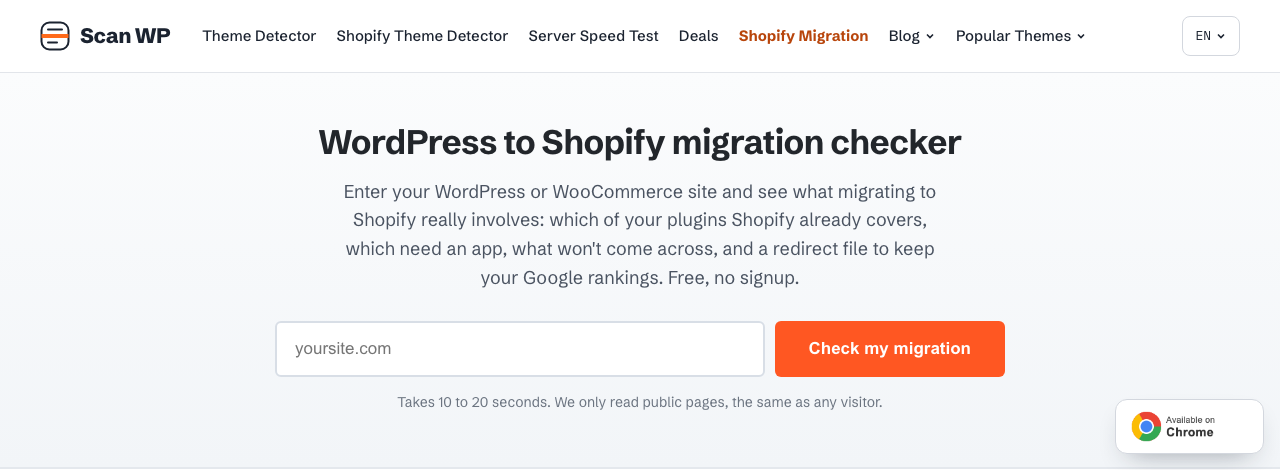
The same report also builds a URL redirect file in Shopify’s import format, which you will use in the SEO step near the end, so keep it handy.
Step 2: Open your Shopify store and start the trial
Create your Shopify account and pick a plan. You can start a Shopify free trial and build the whole store before you pay, which is the sensible way to do a migration: you set everything up, test it, and only go live once it is ready. During the trial, choose a theme and get the basic store settings (currency, shipping zones, tax) in place so the imported products have somewhere to land. Not sure Shopify is the right move at all? It is worth reading WooCommerce and Shopify compared first.
Step 3: Export your data from WooCommerce
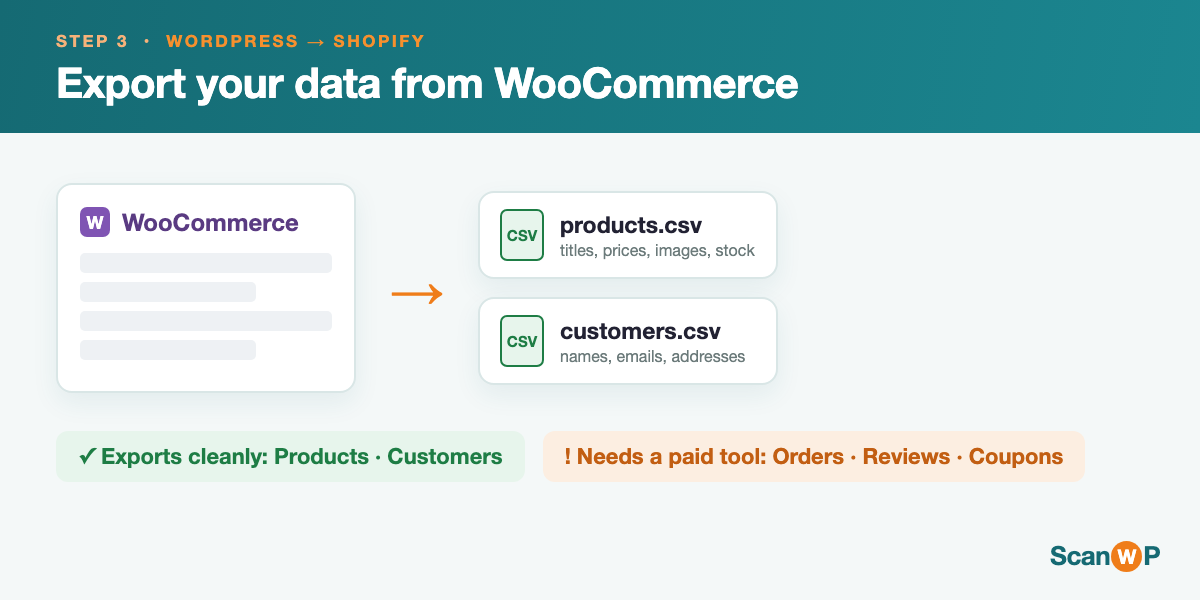
From your WordPress dashboard, go to WooCommerce, then Products, then Export, select all products and download the CSV file. That file is your product data. If you plan to use a migration app that connects directly to your store (more on that next), you may not need the CSV at all, because the app pulls the data over an API connection instead. Either way, make a full backup of your WordPress site before you change anything, so you always have the original to fall back on.
Step 4: Import your products and customers into Shopify
There are three well known tools for this, and which one you choose depends on how much you need to move.
Shopify’s free Store Migration app
Shopify’s own Store Migration app is free and it imports your products and customers. That covers the core of most stores. What it does not bring over is just as important to know: orders, blog posts, pages, product reviews and coupons are all outside its scope. If your store is young and you mainly care about the catalogue and the customer list, the free app is often all you need.
When to use a paid tool
If you need your order history, your content, your reviews or your discount codes to come across, you want a paid migration tool. Two reliable ones:
- Matrixify works through spreadsheet exports and imports and handles large catalogues, orders and more. You generate API credentials on your WooCommerce store and let it map the data across.
- Ablestar WooCommerce Importer connects to your WooCommerce store and is built specifically for the WooCommerce to Shopify path, with a preview of what will import before it runs.
Whichever tool you use, run the import, then check your products in Shopify. Remember that everything lands as a draft and that any product with four or more option types will need its variants rebuilt by hand.
Step 5: Rebuild your design and replace your plugins
With the data in, you rebuild the store. Pick and style a Shopify theme, then work through the plugin list from your Step 1 report. Most WordPress plugins fall into one of four buckets on Shopify, and knowing which bucket a feature is in tells you how much work it is.
| What it does on WordPress | On Shopify it is | What you do |
|---|---|---|
| Caching and performance (for example WP Rocket) | Not needed | Shopify is fully hosted on a fast network, so there is nothing to install. |
| Security and firewall (for example Wordfence) | Not needed | Shopify manages security and payment compliance for you. |
| Backups (for example UpdraftPlus) | Not needed | Shopify keeps the store running; export your data if you want your own copy. |
| SEO (for example Yoast or Rank Math) | Built into Shopify | Shopify handles page titles, meta descriptions and sitemaps natively; an app only if you want extra control. |
| Page building (for example Elementor) | Shopify app | Use a page builder such as PageFly to design landing and product pages. |
| Product reviews | Shopify app | Install Shopify’s own reviews app or a dedicated reviews app from the App Store. |
| Email and marketing (for example Mailchimp) | Shopify app | Use Shopify Email or connect a marketing app. |
| Multi language (for example WPML) | Shopify app | Use Shopify’s translation tools to serve more than one language. |
| Memberships, courses or heavily custom features | No direct equivalent | These need a specialist Shopify app or custom development; plan time for them. |
If you want to see exactly which plugins a given WordPress store runs before you plan any of this, you can always run a URL through the ScanWP detector.
Step 6: Decide what to do with your WordPress blog
Your blog posts are not part of the free product and customer import, and for a lot of stores the simplest answer is to leave the blog where it is. You can keep the WordPress blog running on a subfolder or subdomain and move only the shop to Shopify, which means your existing articles keep their URLs, their rankings and their links untouched. If you would rather have everything under one roof, a paid tool such as Matrixify can bring the posts into Shopify’s own blog, but you then have to redirect every old post URL. Pick the route that costs you the least SEO, which for an established blog is usually keeping it on WordPress.
Step 7: Set up redirects and protect your SEO
This is the step that decides whether your traffic survives the move. Your Shopify URLs will not match your old WordPress ones, so every old link needs to point to its new home. Shopify recommends mapping each old URL to its matching new URL individually rather than sending everything to the homepage, because a blanket redirect to the front page tells Google the old pages are gone.
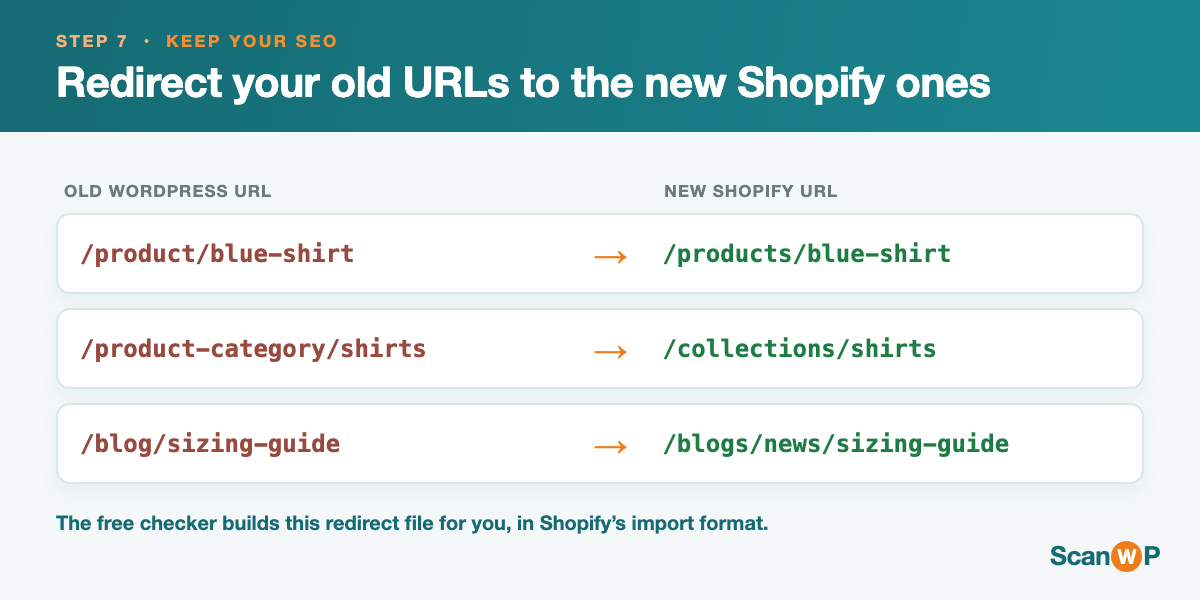
In the Shopify admin you add these under URL Redirects. The redirect file from our checker in Step 1 is already in Shopify’s import format, so you can upload the lot instead of typing them one by one. ShopThemeDetector has a deeper walkthrough of the data and SEO side in its WooCommerce to Shopify migration guide.
Step 8: Place a real test order before you switch anything
Before the store goes live, buy something from it yourself. Put a real product in the cart, go through checkout with a live payment (you can refund it after), and confirm the order appears in Shopify, the confirmation email arrives, any shipping and tax calculate correctly, and your payment provider actually received the money. A test order catches the problems that a glance around the admin never will, and it is far better to find them now than after your first real customer does.
Step 9: Switch your domain and go live
Once your products are active, your design is finished, your plugins are replaced, your redirects are in and your test order went through cleanly, you point your domain at Shopify. Update your DNS so your web address loads the new store, publish your products, and keep an eye on Google Search Console over the following weeks to confirm the redirects are working and the new pages are being indexed. From here the move is done and you are running on Shopify.
Common questions about moving WordPress to Shopify
Can I move my WordPress site to Shopify?
Yes. Your products and customers move with a free app, and with a paid tool you can also bring orders, content and reviews. Your theme and plugins do not transfer and are rebuilt on Shopify’s side, so plan for that work rather than expecting a one click copy.
Will I lose my SEO if I move to Shopify?
Not if you set up redirects. The danger is that your URLs change and the old links break. Map each old WordPress URL to its new Shopify URL, add those redirects in the Shopify admin, and your rankings carry over. Skip the redirects and you will lose traffic.
Does Shopify import my WooCommerce orders?
Not with the free Store Migration app, which does products and customers only. To bring order history across you need a paid tool such as Matrixify or Ablestar.
Can I keep my WordPress blog after moving to Shopify?
Yes, and for many stores it is the better choice. You can move only the shop to Shopify and leave the blog running on WordPress, so your articles keep their URLs and their rankings. Moving the posts into Shopify is possible with a paid tool, but then every post needs a redirect.
How long does a WooCommerce to Shopify migration take?
The data import itself can run in an afternoon for a small catalogue. What takes the time is rebuilding the design, replacing plugins and setting up redirects, so a careful move is better measured in days than hours. Doing it on a Shopify trial, with no deadline pressure, is what keeps it calm.
Ready to start
A WordPress to Shopify migration is very doable once you know that only the data moves cleanly and everything else is a rebuild. Start by running your store through our free WordPress-to-Shopify checker so you know what you are dealing with, then open a Shopify trial and build the new store at your own pace before you flip the domain.
Related Posts



 Website Maintenance – Use Promocode: scanwp
 Advanced JetPlugins for Elementor
 Semrush 14 days trial
 Kinsta – Managed WordPress Hosting
 Bluehost Hosting